From the Tools menu in explorer you open the folder options and do the changes to the folder properties like hiding or showing the hidden folders,showing or hiding the files extension and many more.This function can sometimes be harmful as people can view your hidden files, change the file extension because of which you cannot open the file and many more problems.Here a simple way to get rid of this thing.This simple trick allows you to remove the folder option from tool menu. and you wont have problems like above mentioned.
From the start menu go to run and type "gpedit.msc" and hit enter to open group policy window.On the left panel go to User Configuration->Administrative templates->Windows Component->Windows Explorer.On the right panel you wil find "Remove the Folder Option Menu item From the Tools Menu".Double click it.On setting tabs check Enabled and then click apply to hide the Folder Option and check disabled to show it.Thats it.The Folder Option is missing or appearing.
Wednesday, February 3, 2010

Administrator in Welcome Screen
By default the windows system doesn't show the administrator in the user list.Here is a way to see Administrator.in the user list and do the changes to the compute system by loging into Administrator without restarting to prompt in safe mode to go to the administrator.
Press "win key+r" to open run dialog box.Then type regedit to open registry editor.Then on the left panel of the editor, locate HKEY_LOCAL_MACHINE\SOFTWARE\Microsoft\Windows\CurrentVersion\Winlogon\SpecialAccounts\Userlist.On the right panel right click and goto create a new DWORD and name it Administrator and change its value to 1.Exit and Reboot the system.You will see Administrator in the user list.Its simple as it is.
To remove the administrator simply change its value to 0 or either delete the key
Press "win key+r" to open run dialog box.Then type regedit to open registry editor.Then on the left panel of the editor, locate HKEY_LOCAL_MACHINE\SOFTWARE\Microsoft\Windows\CurrentVersion\Winlogon\SpecialAccounts\Userlist.On the right panel right click and goto create a new DWORD and name it Administrator and change its value to 1.Exit and Reboot the system.You will see Administrator in the user list.Its simple as it is.
To remove the administrator simply change its value to 0 or either delete the key
Remove Recycle Bin from Dsktop in Xp
Normally in Windows XP you can remove 'My Computer', 'My Documents' but cannot remove Recycle Bin from the desktop.You can remove recycle bin by simple registry editing the registry.
Press "win key+r" and type "regedit" to open a registry editor.Locate HKEY_LOCAL_MACHINE\SOFTWARE\Microsoft\Windows\CurrentVersion\Explorer\Desktop\NameSpace on the left panel.Inside there, you will find {645FF040-5081-101B-9F08-00AA002F954E}.JustDelete it.
If you want it back just add new kew HKEY_LOCAL_MACHINE\SOFTWARE\Microsoft\Windows\CurrentVersion\Explorer\Desktop\NameSpace with a name {645FF040-5081-101B-9F08-00AA002F954E}.
On the right side, change the value data of the (Default) to Recycle Bin.
Change Your Pendrive into Ram
Download a software called ebooster.
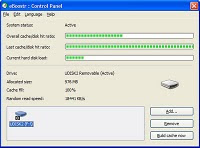
This software is really good to use Pendrive as ram.
Disable Right click
For some security problem you might want to disable the right click menu in desktop as people may change the display properties that you don't want to.This simple way is really going to help you.Try it.
Step 1
On the left sid epanel locate HKEY_CURRENT_USER\SOFTWARE\MICROSOFT\WINDOWS\CURRENT VERSION\POLICIES\EXPLORER
Step 2
On the right sid epanel right clcik and click DWORD to create a DWORD value with name "NoViewContextMenu".(Case Sensitive)
Step 3
Assign the value 1 to it.
Step 4
Now make changes you want to make to your desktop
Step 5
Restart the system.You cand right click.
To remove this tip, just delete the created DWORD that you just created.
Step 1
On the left sid epanel locate HKEY_CURRENT_USER\SOFTWARE\MICROSOFT\WINDOWS\CURRENT VERSION\POLICIES\EXPLORER
Step 2
On the right sid epanel right clcik and click DWORD to create a DWORD value with name "NoViewContextMenu".(Case Sensitive)
Step 3
Assign the value 1 to it.
Step 4
Now make changes you want to make to your desktop
Step 5
Restart the system.You cand right click.
To remove this tip, just delete the created DWORD that you just created.
Closing Non Responsive Programes
Sometimes some programs do not respond.You can close these programs by just editing registry.
Step 1
Go to Start->Run and type regedit
Step 2
Locate HKEY_CURRENT_USER\Control Panel\Desktop on the left side.
Step 3
On the right side panel search for "AutoEndTasks".
Step 4
Change its value to 1
Step 5
Close the editor
Step 6
Restart the system
You are done.
Step 1
Go to Start->Run and type regedit
Step 2
Locate HKEY_CURRENT_USER\Control Panel\Desktop on the left side.
Step 3
On the right side panel search for "AutoEndTasks".
Step 4
Change its value to 1
Step 5
Close the editor
Step 6
Restart the system
You are done.
Simple Way to View Folder Size in Explorer
To see the size of any folder you right click it and go to properties to know its size.Its boring way right?Now you dont have to do that for every folders.Here is how you can show the folder's size in the windows explorer.But this trick or software works in windows xp only.
Step 1
Download a software "Folder Size"
Step 2
Install it
Step 3
Open the Explorer and view it in details(Details view)
Step 4
Right click on the column header
Step 5
Choose Folder Size
Step 6
Replace the Size column by unchecking Size column.
Step 7
Make this view default for all other folders.Folder options->Tools->View tab->Click "Apply to All Folders."
Step 1
Download a software "Folder Size"
Step 2
Install it
Step 3
Open the Explorer and view it in details(Details view)
Step 4
Right click on the column header
Step 5
Choose Folder Size
Step 6
Replace the Size column by unchecking Size column.
Step 7
Make this view default for all other folders.Folder options->Tools->View tab->Click "Apply to All Folders."
Subscribe to:
Posts (Atom)